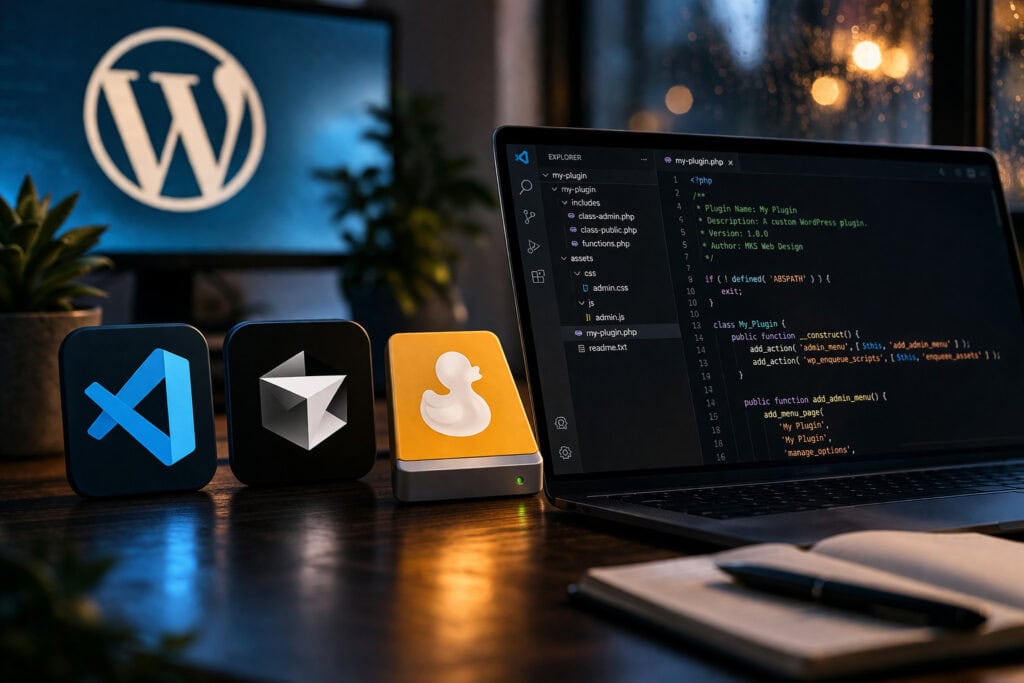
How I’m Using VS Code and Cursor with Mountain Duck for WordPress Plugin Development
If you’ve ever tried to do serious WordPress plugin development on a Windows machine without a local dev environment set up, you know the friction. Live files sitting on a remote server, editing over FTP in a bare-bones client, and hoping nothing breaks before you can test. For a long time, it just felt clunky.
I’ve been experimenting with a workflow that’s cleaned that up significantly — pairing VS Code and Cursor together with Mountain Duck to mount a remote server folder directly as a local drive. It’s not complicated, but it took some trial and error to get right, so I figured it was worth sharing.
The Problem I Was Trying to Solve
WordPress plugin development has a specific challenge: you’re almost always working inside a folder structure that lives on a server — /wp-content/plugins/your-plugin/ — and that server isn’t your local machine. Sure, you can spin up a local environment with something like LocalWP or DevKinsta, but for plugin work on an active staging server, I wanted to edit files directly without mirroring them locally and constantly re-uploading.
What I didn’t want: an FTP client with a file browser, manually opening files, editing them, saving, and uploading. That workflow kills momentum fast.
Enter Mountain Duck
Mountain Duck is a macOS/Windows app that mounts remote servers — SFTP, FTP, S3, you name it — as a local drive. For Windows, that means your remote /wp-content/plugins/ folder shows up in File Explorer like it’s just another folder on your machine.
Setup is straightforward:
- Add your SFTP connection (host, port, username, key or password)
- Choose your folder or mount the root
- Mount it, and it appears as a drive in Windows Explorer
Once it’s mounted, any application that can open local files can now work with your remote files. That’s the key piece.
VS Code: The Base Layer
I open the mounted Mountain Duck drive folder directly in VS Code as a workspace. From there, I get everything I normally would with a local project:
- Full folder tree in the sidebar
- IntelliSense and PHP autocompletion (with the right extensions installed)
- Search across the entire plugin directory
- Git integration if the remote folder is version controlled
The editing experience is clean. When you save a file, Mountain Duck handles syncing it back to the server automatically in the background. There’s a brief delay depending on your connection, but it’s fast enough that it doesn’t interrupt flow.
For plugin development, I keep the folder structure clean: one workspace pointed at /wp-content/plugins/myplugin/ so I’m not wading through the entire WordPress install every time I need to find a file.
Cursor: Where the AI Assist Comes In
VS Code handles the heavy lifting, but I’ve been running Cursor alongside it for the AI-assisted parts of plugin development — especially when I’m writing hooks, filters, or building out admin menu structures I don’t have memorized cold.
Cursor is a fork of VS Code, so the interface is nearly identical. I use it specifically when I want to:
- Generate boilerplate plugin scaffolding quickly
- Ask questions about a block of code without leaving the editor
- Refactor functions with context from the surrounding file
I don’t use Cursor as a replacement for VS Code — I use both depending on what I’m doing. If I’m deep in writing logic and I know what I’m building, VS Code. If I’m working something out or scaffolding new functionality, I’ll flip to Cursor with the same Mountain Duck-mounted folder open.
Since both editors treat the mounted drive like a local path, they both write to the same files on the remote server. No sync conflicts, no double uploads.
The Folder Structure That Actually Works
For WordPress plugin development over SFTP, I mount at the /wp-content/plugins/ level rather than the WordPress root. There are a few reasons for that:
- It keeps the workspace scope tight — I’m not accidentally browsing core files
- File search and indexing in VS Code stays fast
- It’s easier to work on multiple plugins by opening them as separate workspace folders
If I need to look at something in the theme or a mu-plugin, I’ll mount a second connection or temporarily switch the workspace folder. But for focused plugin work, keeping it scoped to /plugins/ is the move.
A Few Things to Know Going In
Mountain Duck does buffer writes. There’s a short window between when you save in VS Code and when the file is updated on the server. For most plugin development this is fine, but if you’re making rapid changes and immediately refreshing a page to test, you might be one save behind. I just got used to giving it a half-second.
SFTP key authentication is smoother than passwords. Mountain Duck supports both, but if you’re on a host that allows key-based auth, set it up. The connection is faster and you’re not re-entering credentials every time the mount drops.
VS Code’s remote filesystem indexing can be slow on first open. If your plugin folder is large or you’ve got a lot of files, let it index fully before you start searching. After the first time, it’s snappy.
Is This Better Than a Local Dev Environment?
Depends on what you’re building. For active staging servers or situations where local environment parity is important, something like LocalWP still makes sense. But for plugin development where I’m iterating on an existing install and I want real data and real plugin interactions, working directly on the staging server over SFTP is actually faster for me day-to-day.
No export/import cycle. No “works locally, breaks on server” surprises. Just edit, save, refresh, and test.
Final Thoughts
The VS Code + Cursor + Mountain Duck combination isn’t magic, but it’s genuinely the cleanest Windows-based workflow I’ve found for WordPress plugin development over SFTP. It removes the friction of FTP clients and local environment sync without sacrificing the editor experience I actually want.
If you’re doing any amount of custom plugin work and you haven’t tried mounting your remote server as a local drive, it’s worth the few minutes of setup. You’ll wonder why you were doing it the other way.
